Use Google Calendar Appointment Schedules to Stop the Intake Back-and-Forth
Use Google Calendar Appointment Schedules to Stop the Intake Back-and-Forth
Booking a call should not take six emails.
But for a lot of small businesses, it still does. A prospect asks for time, someone replies late, three options get sent, one person misses the thread, and the whole thing starts to feel harder than it should.
Google Calendar already gives you a cleaner option. Most people think of Calendly, High Level, or another dedicated scheduler first, and those are solid tools. We use and support High Level too. But if you already live in Google Workspace, Google Calendar can handle basic scheduling very well.
And if you set it up right, you can cut the back-and-forth without buying another scheduling tool this week.
Key insight: The first job of digital infrastructure is to remove small delays that kill momentum.
Booking gets easier when your rules are built into the calendar.
What Google Calendar appointment schedules actually do
Google Calendar appointment schedules give you a shareable booking page tied to your calendar. People pick from the times you make available, and the system applies the rules you set around duration, lead time, buffer time, booking limits, form questions, confirmations, and reminders.
That matters because the tool is doing more than showing open slots. It is setting rules.
And rules are what keep an intake process from turning into email ping-pong.
When this is a good fit and when it is not
This setup is a good fit when you book discovery calls, consultations, estimate reviews, or short client check-ins, when you already live inside Google Calendar, when you want a simple booking page fast, and when you need better control over lead time and buffer time.
It is a bad fit when you need deep routing logic, round-robin across a larger sales team, or a more advanced multi-step funnel.
That is the tradeoff. Simpler tools are great until your process stops being simple.
How to set it up inside Google Calendar
Most people have never looked for this feature, so here are the plain steps.
Open Google Calendar on a computer. On the main calendar screen, click Create, then choose Appointment schedule. From there, set the title, duration, availability, scheduling window, buffer time, booking limits, booking form, and reminders.
That means you are not creating a normal event. You are creating a reusable booking page with rules.
1. Create one schedule for one call type
Do not dump every meeting type into one booking page.
Start with one. A discovery call, estimate review, or intake call is enough.
Inside the schedule setup, give it a clear title, choose the duration, and choose the days and hours you want people to book.
SettingGood starting point TitleDiscovery Call Duration30 minutes AvailabilityTuesday to Thursday, 10 AM to 3 PM LocationGoogle Meet or phone call
That is enough for version one.
2. Turn on the right scheduling features
This is where the tool becomes useful.
Inside the schedule settings, control the booking window, minimum lead time, buffer time, and maximum bookings per day. Those are the features that stop scheduling from becoming random.
Use them on purpose.
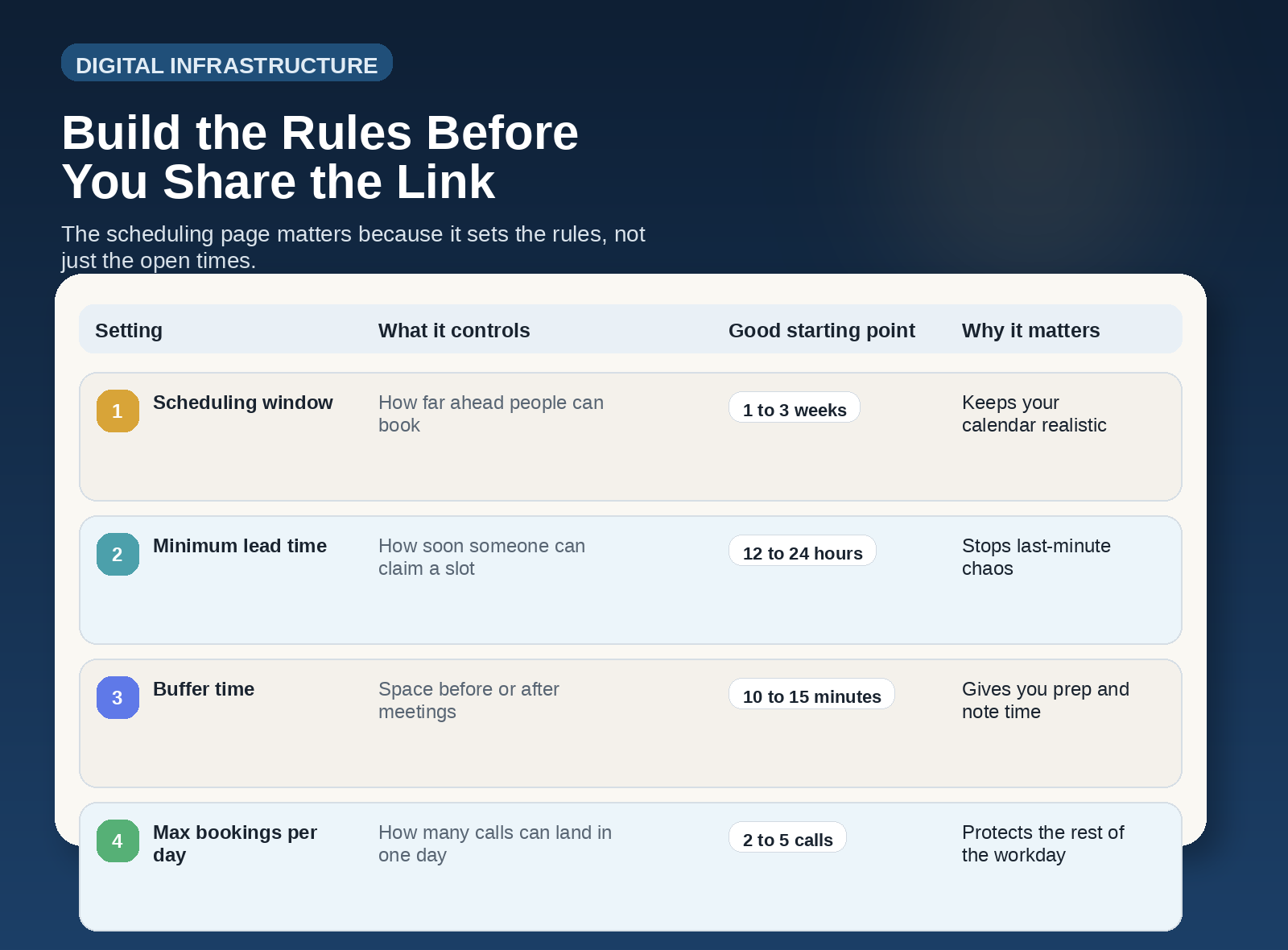
Good scheduling depends on a few clear rules, not more email.
FeatureWhat it doesPractical recommendation Scheduling windowControls how far in advance someone can bookKeep it short enough that your calendar stays real. One to three weeks is usually enough. Minimum lead timePrevents last-minute bookingsGive yourself at least 12 to 24 hours unless you sell something urgent. Buffer timeAdds space before or after meetingsStart with 10 to 15 minutes so you can prep and leave notes. Max bookings per dayCaps how many appointments people can claimProtect your workday. Two to five calls is often enough for small teams.
If you skip these settings, the tool still works. But it works against you.
3. Create rules before you share the link
Rules matter more than the link.
If the link goes out before the rules are set, people can book at bad times, stack your day, and create preventable chaos.
Set these rules first:
Only offer times you can actually protect. Do not open your whole calendar just because it looks generous.
Use a real lead time. If you need prep time, build it into the rules instead of hoping for it later.
Add buffer time. Back-to-back appointments make you look busy, not effective.
Set a daily cap. You still need time to do the work that comes after the call.
Decide what happens after booking. Confirmation email, reminder, and next step should already be clear.
That is what makes the system feel calm on both sides.
4. Set up the booking form
The booking form already includes the basics like first name, last name, and email, and you can add more questions if you need context.
Keep this short.
Ask only what changes the conversation. Good examples are:
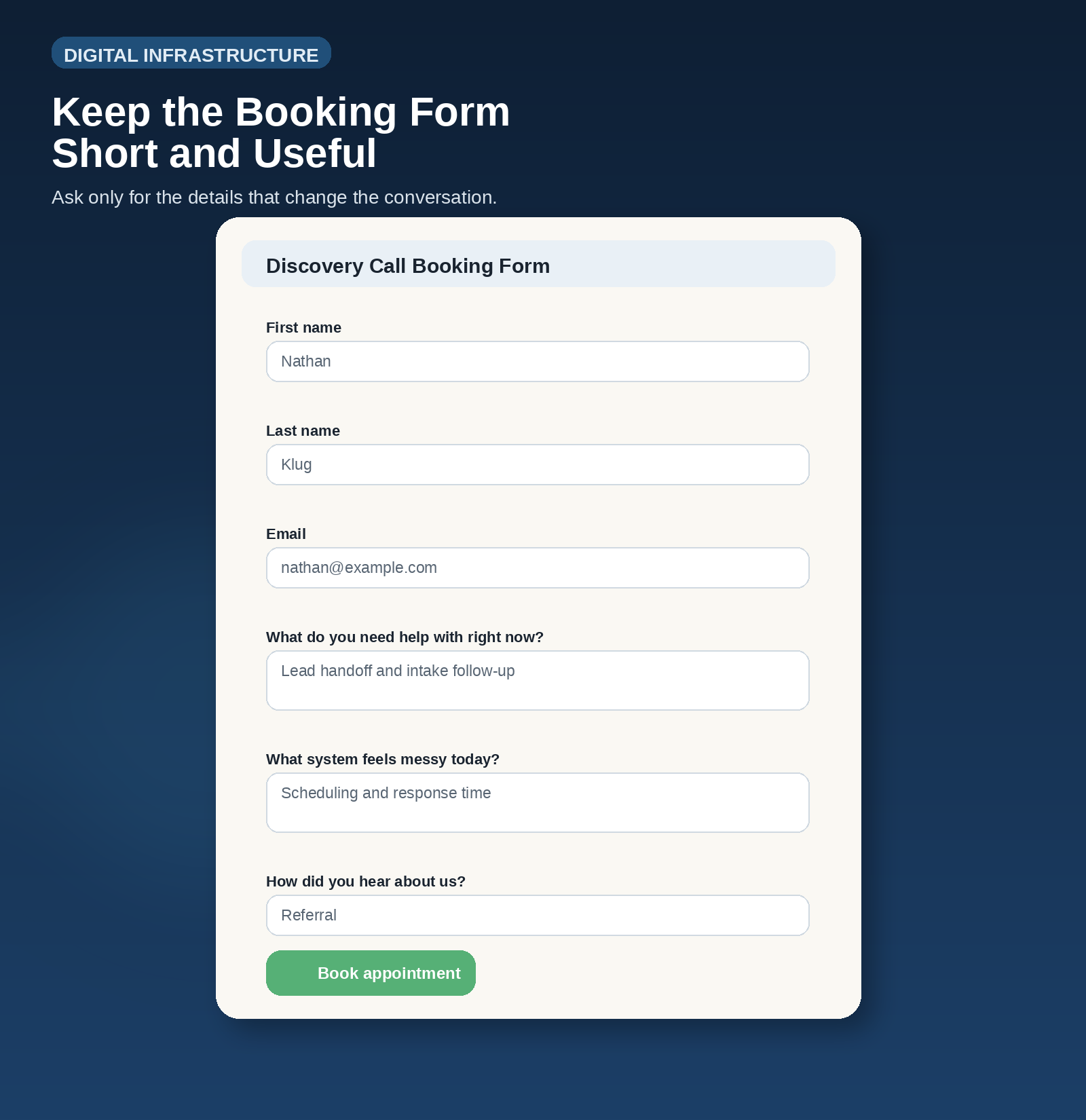
A short booking form gathers context without adding friction.
Better questionWhy it helps What do you need help with right now?Gives context without overwhelming the prospect What system feels messy today?Helps you frame the call around an operational issue How did you hear about us?Gives simple attribution data
Do not turn a simple booking page into a tax form.
5. Set up the link and put it in useful places
Once the schedule is saved, open the booking page, copy the share link, and use that same link anywhere someone needs a clear next step.
This is the part most people miss. The tool is not helpful if the link only lives inside your calendar settings.
Put the link where people already look for next steps.
Place to use the linkWhy it matters Email signatureMakes booking easy after one good email thread Contact pageGives website visitors an immediate next action Inquiry reply templatesRemoves the back-and-forth after someone asks for time CRM follow-up templatesHelps your team send the same clean next step every time Thank-you pagesCaptures momentum right after a form submission
If you want to keep it simple, start with your email signature and your standard inquiry reply.
6. Make confirmations and reminders do the boring work
Appointment schedules can send confirmation emails and reminder messages before the meeting.
That means you can reduce no-shows and cut manual reminder work without adding another app.
And that is the point. Good infrastructure handles the boring parts so humans can handle the useful parts.
The hidden win is better intake quality
Most owners think scheduling tools save time.
They do. But the bigger win is cleaner intake.
A booking page with the right lead time, a short form, and built-in reminders creates a calmer first impression. The prospect sees a system. Your team sees better context. And the call starts with less scrambling.
What this looks like in real life
Say you run a service business and someone emails, "Can we talk this week?"
Instead of replying with three time options and hoping they answer, you send one clean response with your booking link.
They pick a slot. The form asks what they need help with. The confirmation goes out automatically. A reminder hits before the call. And when the meeting starts, you already know the problem they want to discuss.
That is not fancy.
That is just less friction.
A simple workflow you can copy this afternoon
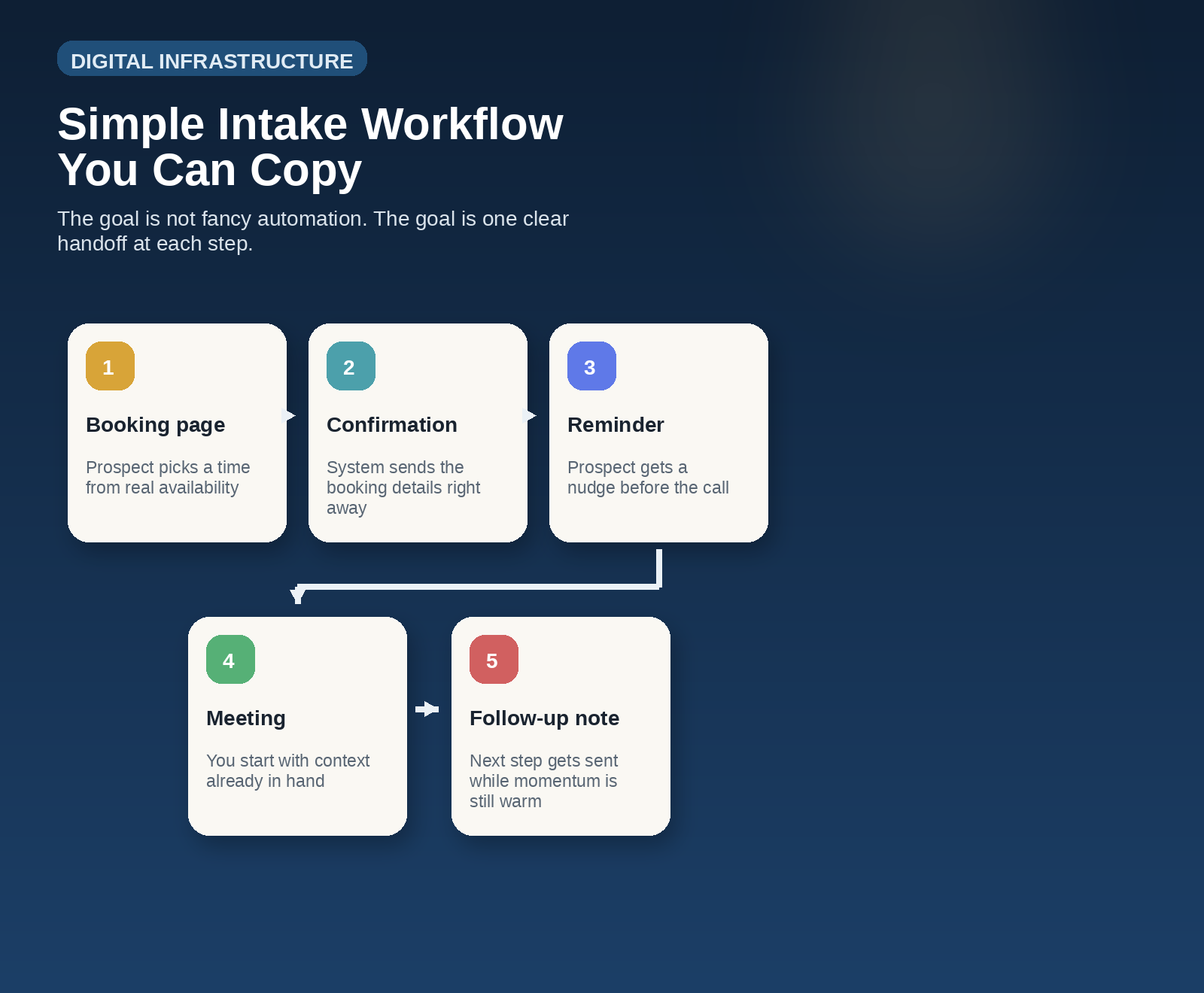
Simple tools work well when the handoff is obvious.
StepActionOwner 1Create one appointment schedule for one call typeOwner or admin 2Set duration, availability, and meeting locationOwner 3Add rules for scheduling window, lead time, buffer time, and daily booking capOwner 4Add 1 to 3 short booking questionsOwner 5Save the booking page and copy the share link into email signatures, contact pages, and inquiry repliesMarketing or admin 6Turn on confirmations and reminders, then review no-show rate and booking quality after two weeksOwner
That is enough for version one.
Do not overbuild it.
FAQ
Do I need a separate scheduling tool if I already use Google Workspace?
Not always. If you only need a simple booking page, a few rules, a short intake form, and reminders, Google Calendar can handle the basics well. If you are ready to upgrade and want your Google Workspace connected to a CRM then, take a look at the LIFT Marketing System.
What is the most important rule to set first?
Lead time is usually the first rule to set. It protects you from last-minute bookings that force you into rushed calls.
Where should I put the booking link first?
Start with the places that already create scheduling friction: your email signature, your standard inquiry reply, and your contact page.
How many booking questions should I ask?
Usually one to three. Ask only what helps you run a better call.
When should I move to a bigger scheduling tool?
Move when your process needs routing logic, team round-robin, or deeper funnel automation. Until then, keep it simple.
Closing
A lot of intake friction looks small until you add it up.
One delayed reply here. One missed thread there. One reschedule because nobody left buffer time. It all costs momentum.
Google Calendar appointment schedules will not fix a broken sales process. But they can remove a very common layer of friction fast.
If your intake still depends on manual back-and-forth, fix that first. Then decide whether you need a bigger tool later.
For a soft next step, look at the last ten calls you booked manually and ask how many of them could have started with one clean scheduling link instead.